Other Options – Autodesk Maya
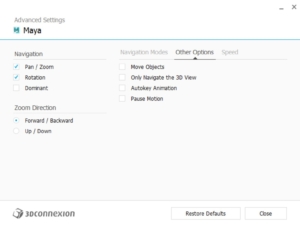
Move Objects: Enables the movement of selected objects inside the scene.
Only Navigate the 3D View: If enabled, the SpaceMouse movement will be locked to 3D Viewports. This option is very useful if you are doing some editing work in an orthographic view and simultaneously using the SpaceMouse to pan, zoom and rotate in a perspective view for improved visualization.
Autokey Animation: Allows you to automatically set keys when moving a camera with the SpaceMouse. To use this mode, follow these steps:
- Change view to a created camera, not the perspective view.
- Ensure “Autokey Animation” is enabled.
- Enable Auto Key within Maya
- Now move the camera with the SpaceMouse. The timeline will move, and keys will be automatically set.
- Once complete, disable “Auto Key” within Maya. The newly created animation can be played back.
This option is very useful for quickly creating test animations to ensure that object positioning is as expected.
Note: if the recording you made using this method appears very fast when you play it back, please refer to this article by Autodesk: Animations moving faster than expected in Maya (autodesk.com)
Pause Motion: Disables SpaceMouse navigation. When activated, the movement of the SpaceMouse cap will have no effect in the program.